JavaScript for Beginners: Full TutorialNew
• Updated 5/26/2026 • JavaScriptBeginnerWeb DevelopmentProgrammingTutorial
Overview
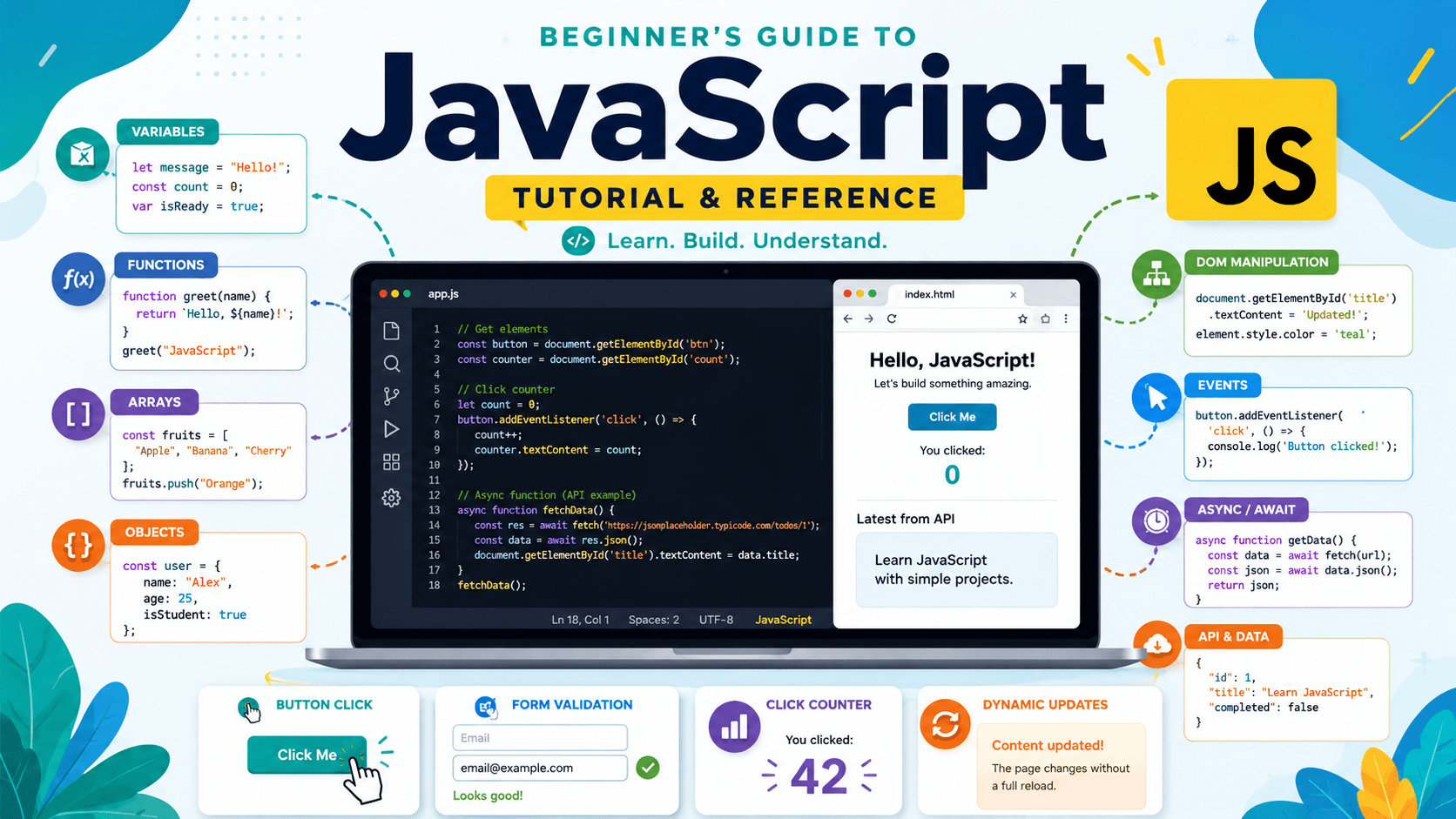
JavaScript is the programming language that makes web pages interactive. While HTML gives a page structure and CSS controls how it looks, JavaScript lets you respond to user actions, update content, validate forms, work with data, and build dynamic web experiences.
This beginner-friendly JavaScript tutorial is designed as a practical reference for the website and as a downloadable or printable PDF. Use it to learn the core concepts, review examples, avoid common mistakes, and practice with small hands-on tasks.
When to Use JavaScript
Use JavaScript when a web page needs behavior, interaction, logic, or dynamic updates.
- Add click actions, dropdowns, modals, tabs, sliders, and menus.
- Validate forms before users submit them.
- Change text, styles, or HTML content dynamically.
- Show or hide elements based on user actions.
- Fetch and display data from APIs.
- Build interactive tools, calculators, quizzes, dashboards, and web apps.
- Create frontend applications with frameworks such as React, Vue, Angular, or Svelte.
- Build backend applications using Node.js.
Key Concepts
1. Variables
Variables store values that your program can use later. Use const for values that should not be reassigned and let for values that may change.
const name = "Alex";
let score = 10;
score = 15;
2. Data Types
JavaScript includes common data types such as strings, numbers, booleans, arrays, objects, null, and undefined.
const message = "Hello";
const age = 25;
const isOnline = true;
const colors = ["red", "blue", "green"];
const user = { name: "Alex", role: "student" };
3. Operators
Operators let you perform calculations, compare values, and combine conditions.
const total = 10 + 5;
const isAdult = age >= 18;
const canAccess = isOnline && isAdult;
4. Control Flow
Control flow lets your code make decisions using if, else, and switch.
const temperature = 30;

if (temperature >= 30) {
  console.log("It is hot today.");
} else {
  console.log("The weather is mild.");
}
5. Loops
Loops repeat code. They are useful for working with lists, arrays, and repeated actions.
const fruits = ["apple", "banana", "mango"];

for (let i = 0; i < fruits.length; i++) {
  console.log(fruits[i]);
}
6. Functions
Functions group reusable logic. They can receive inputs called parameters and return a result.
function addNumbers(a, b) {
  return a + b;
}

console.log(addNumbers(3, 4));
7. Arrays and Objects
Arrays store lists of values. Objects store related data using key-value pairs.
const tasks = ["Study JavaScript", "Build a project"];

const profile = {
  name: "Alex",
  level: "beginner",
  active: true
};
8. DOM Manipulation
The DOM, or Document Object Model, represents the HTML page. JavaScript can select elements and update their text, styles, classes, and attributes.
const title = document.querySelector("h1");
title.textContent = "JavaScript is fun!";
9. Events
Events let JavaScript respond to user actions such as clicks, typing, submitting forms, and scrolling.
const button = document.querySelector("button");

button.addEventListener("click", function() {
  console.log("Button clicked!");
});
10. Asynchronous JavaScript
Asynchronous JavaScript handles tasks that take time, such as fetching data from an API. Modern JavaScript often uses promises and async/await.
async function getData() {
  const response = await fetch("https://jsonplaceholder.typicode.com/posts/1");
  const data = await response.json();
  console.log(data);
}
Examples
Example 1: Print a Message
console.log("Hello, JavaScript!");Example 2: Check a User's Age
const age = 20;

if (age >= 18) {
  console.log("You are allowed to continue.");
} else {
  console.log("You are too young to continue.");
}
Example 3: Count Items in an Array
const items = ["HTML", "CSS", "JavaScript"];
console.log(items.length);
Example 4: Change Text on a Page
<h1 id="title">Original Title</h1>
<button id="changeBtn">Change Title</button>

<script>
  const title = document.querySelector("#title");
  const button = document.querySelector("#changeBtn");

  button.addEventListener("click", function() {
    title.textContent = "Updated with JavaScript!";
  });
</script>
Example 5: Simple Background Color Switcher
<!DOCTYPE html>
<html lang="en">
<head>
  <meta charset="UTF-8">
  <title>Color Switcher</title>
  <style>
    body {
      font-family: Arial, sans-serif;
      text-align: center;
      padding: 50px;
    }

    button {
      padding: 10px 16px;
      cursor: pointer;
    }
  </style>
</head>
<body>
  <h1>Background Color Switcher</h1>
  <button id="changeBtn">Change Background</button>

  <script>
    const colors = ["#fee2e2", "#dcfce7", "#dbeafe", "#fef3c7"];
    let index = 0;
    const button = document.querySelector("#changeBtn");

    button.addEventListener("click", function() {
      document.body.style.backgroundColor = colors[index];
      index = (index + 1) % colors.length;
    });
  </script>
</body>
</html>
Checklist
- Understand what JavaScript is used for.
- Know how to use
letandconst. - Recognize basic data types such as strings, numbers, booleans, arrays, and objects.
- Use conditionals to make decisions.
- Use loops to repeat actions.
- Create functions with parameters and return values.
- Select HTML elements using
querySelector()orquerySelectorAll(). - Respond to user actions with
addEventListener(). - Use the browser console to test and debug code.
- Understand the basics of promises and
async/await.
Common Mistakes
- Using
vartoo often: Preferletandconstbecause they are clearer and block-scoped. - Forgetting quotes around strings: Text values must be wrapped in quotes.
- Confusing
=with===: Use=for assignment and===for comparison. - Running DOM code before the element exists: Place scripts before the closing
</body>tag or wait for the page to load. - Forgetting to call a function: Defining a function does not run it. You must call it using parentheses.
- Ignoring error messages: Browser console errors often tell you exactly what went wrong.
- Hard-coding repeated values: Store reusable values in variables or constants.
- Not handling async code properly: Use
awaitinside anasyncfunction or handle promises with.then().
Practice Tasks
- Print your name, age, and favorite programming language using
console.log(). - Create a function that adds two numbers and returns the result.
- Create an array of five favorite foods and loop through each item.
- Write a condition that checks if a number is even or odd.
- Create a button that changes the text of a heading when clicked.
- Create a counter with increment and decrement buttons.
- Create a simple form validation script that checks if an input is empty.
- Fetch sample data from a public API and display one value in the console.
Mini Project: Click Counter
Build a simple click counter to practice variables, DOM selection, events, and updating text content.
<h1>Click Counter</h1>
<p>Count: <span id="count">0</span></p>
<button id="increaseBtn">Increase</button>

<script>
  let count = 0;
  const countText = document.querySelector("#count");
  const button = document.querySelector("#increaseBtn");

  button.addEventListener("click", function() {
    count++;
    countText.textContent = count;
  });
</script>
Recommended Series or Learning Path
For this JavaScript resource, the best series title is JavaScript Foundations. It clearly identifies the resource as part of a beginner learning path focused on core JavaScript skills.
- HTML Foundations
- CSS Foundations
- JavaScript Foundations
- DOM and Events
- JavaScript Projects
- Frontend Frameworks
Next Steps
After learning the JavaScript basics, continue with practical topics and projects:
- Practice DOM manipulation with tabs, modals, accordions, and image galleries.
- Learn array methods such as
map(),filter(),reduce(), andfind(). - Study objects, destructuring, spread syntax, and template literals.
- Learn asynchronous JavaScript with
fetch(), promises, andasync/await. - Build beginner projects such as a to-do list, calculator, quiz app, weather app, and notes app.
- Explore React, Vue, or another frontend framework after you are comfortable with vanilla JavaScript.