
Full HTML Tutorial for BeginnersNew
• Updated 5/26/2026 • HTMLWeb DevelopmentBeginnerMarkup LanguageTutorial
Overview
This tutorial introduces the fundamentals of HyperText Markup Language (HTML), the standard language used to structure content on the web. You will learn how to create a complete HTML document, use essential tags, organize content semantically, and build a simple webpage that is ready for styling with CSS and interactivity with JavaScript.
HTML is not a programming language. It is a markup language, which means it uses tags to describe the meaning and structure of content such as headings, paragraphs, links, images, lists, tables, forms, and page sections.
When to Use HTML
- Building static web pages, landing pages, documentation pages, and prototypes.
- Defining the semantic structure of web content before adding CSS or JavaScript.
- Creating accessible content that can be understood by browsers, search engines, and screen readers.
- Building the foundation for frontend, backend, and full-stack web development projects.
- Creating forms, articles, navigation menus, portfolios, blogs, and content pages.
Key Concepts
1. HTML Document Structure
Every HTML page should follow a basic structure. This helps browsers understand how to read and display your webpage.
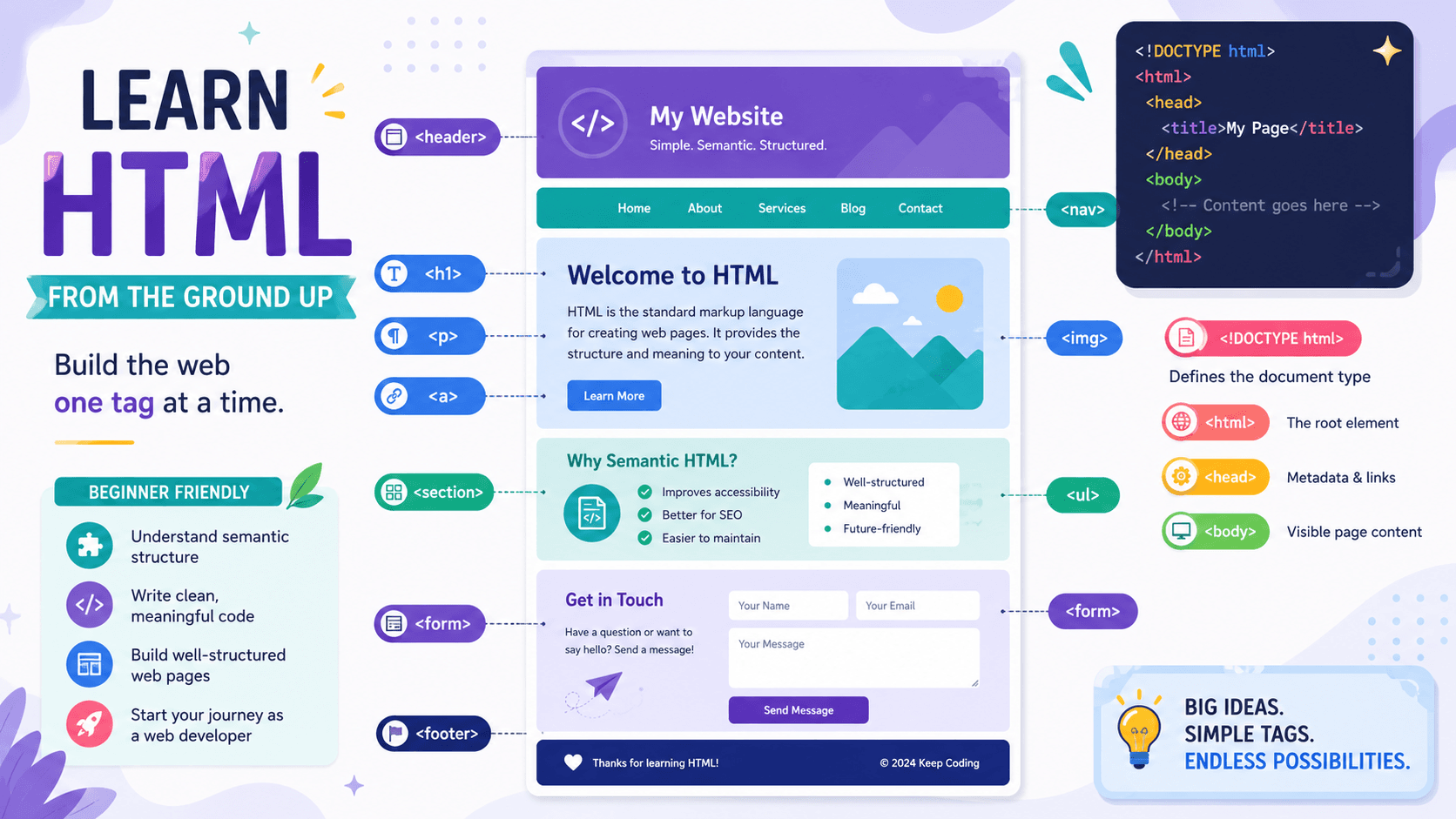
<!DOCTYPE html>tells the browser that the document uses HTML5.<html>is the root element of the page.<head>contains page information such as metadata, title, and links to stylesheets.<body>contains the visible content users see in the browser.
2. Common HTML Tags
<h1>to<h6>define headings.<p>defines a paragraph.<a>creates a hyperlink.<img>displays an image.<ul>,<ol>, and<li>create lists.<table>,<tr>,<th>, and<td>create tables.<form>,<input>,<label>, and<button>create forms.
3. Attributes
Attributes provide extra information about an HTML element. They are written inside the opening tag.
idgives an element a unique identifier.classgroups elements for styling or JavaScript behavior.hrefdefines the destination of a link.srcdefines the source file for an image or media element.altprovides alternative text for images.typedefines the behavior of form inputs and buttons.
4. Semantic HTML
Semantic HTML uses meaningful tags that describe the purpose of the content. This improves readability, accessibility, SEO, and maintainability.
<header>represents introductory content.<nav>represents navigation links.<main>represents the main content of the page.<section>groups related content.<article>represents standalone content such as a blog post or card.<aside>represents supporting content such as a sidebar.<footer>represents footer content.
5. Best Practices
- Use proper nesting and indentation.
- Use semantic tags instead of too many generic
<div>elements. - Use descriptive link text instead of vague text like
click here. - Add meaningful
alttext to important images. - Use labels for form fields.
- Keep heading levels in logical order.
- Validate your HTML when possible.
Examples
Minimal HTML5 Document
Below is a basic HTML5 document with semantic structure:
<!DOCTYPE html>
<html lang="en">
  <head>
    <meta charset="UTF-8">
    <meta name="viewport" content="width=device-width, initial-scale=1.0">
    <title>My First Webpage</title>
  </head>
  <body>
    <header>
      <h1>Welcome to My Site</h1>
    </header>

    <nav aria-label="Main navigation">
      <ul>
        <li><a href="#home">Home</a></li>
        <li><a href="#about">About</a></li>
        <li><a href="#contact">Contact</a></li>
      </ul>
    </nav>

    <main>
      <section id="home">
        <h2>Home</h2>
        <p>This is a paragraph inside the home section.</p>
      </section>

      <section id="about">
        <h2>About</h2>
        <p>This section describes the purpose of the website.</p>
      </section>
    </main>

    <footer>
      <p>© 2026 My Site</p>
    </footer>
  </body>
</html>
Example: Links
<a href="https://example.com">Visit Example Website</a>Example: Image with Alt Text
<img src="profile.jpg" alt="Portrait of Jane Doe smiling">Example: Unordered List
<ul>
  <li>HTML basics</li>
  <li>CSS styling</li>
  <li>JavaScript interactivity</li>
</ul>
Example: Simple Form
<form>
  <label for="name">Name</label>
  <input id="name" name="name" type="text" required>

  <label for="email">Email</label>
  <input id="email" name="email" type="email" required>

  <button type="submit">Send</button>
</form>
Complete Practice Project
Use this full example to practice creating a beginner-friendly personal profile page.
<!DOCTYPE html>
<html lang="en">
  <head>
    <meta charset="UTF-8">
    <meta name="viewport" content="width=device-width, initial-scale=1.0">
    <meta name="description" content="A simple personal profile page built with HTML.">
    <title>My Personal Profile</title>
  </head>
  <body>
    <header>
      <h1>Jane Doe</h1>
      <p>Beginner web developer learning HTML, CSS, and JavaScript.</p>
    </header>

    <nav aria-label="Profile navigation">
      <ul>
        <li><a href="#about">About</a></li>
        <li><a href="#skills">Skills</a></li>
        <li><a href="#contact">Contact</a></li>
      </ul>
    </nav>

    <main>
      <section id="about">
        <h2>About Me</h2>
        <p>I enjoy learning how websites are built. My goal is to create clean, accessible, and useful web pages.</p>
      </section>

      <section id="skills">
        <h2>Skills I Am Learning</h2>
        <ul>
          <li>Writing semantic HTML</li>
          <li>Styling pages with CSS</li>
          <li>Adding interactivity with JavaScript</li>
        </ul>
      </section>

      <section id="contact">
        <h2>Contact Me</h2>
        <form>
          <label for="fullName">Full name</label>
          <input id="fullName" name="fullName" type="text" required>

          <label for="emailAddress">Email address</label>
          <input id="emailAddress" name="emailAddress" type="email" required>

          <label for="message">Message</label>
          <textarea id="message" name="message" rows="4" required></textarea>

          <button type="submit">Send Message</button>
        </form>
      </section>
    </main>

    <footer>
      <p>© 2026 Jane Doe. All rights reserved.</p>
    </footer>
  </body>
</html>
Checklist
- Include
<!DOCTYPE html>at the top of the file. - Use
<html lang="en">or the correct language for your page. - Add
<meta charset="UTF-8">inside the<head>. - Add the viewport meta tag for responsive behavior.
- Use a clear and descriptive
<title>. - Use headings in logical order.
- Use semantic elements such as
<header>,<nav>,<main>,<section>, and<footer>. - Use proper nesting of tags.
- Add descriptive
alttext for meaningful images. - Connect every form field to a
<label>. - Use descriptive link text.
- Validate your HTML when possible.
Common Mistakes
- Omitting closing tags for elements that require them, such as
<div>,<p>, or<section>. - Forgetting the
<!DOCTYPE html>declaration. - Forgetting to set the character encoding with
<meta charset="UTF-8">. - Skipping the viewport meta tag, which can cause poor mobile display.
- Using heading tags only to make text bigger instead of organizing content.
- Using non-semantic tags when semantic tags would be clearer.
- Using vague link text such as
click here. - Missing
alttext on meaningful images. - Using tables for page layout instead of actual tabular data.
- Leaving form inputs without labels.
Practice Tasks
- Create a file named
index.html. - Add a complete HTML5 document structure.
- Add a page title and main heading.
- Create an about section with a short paragraph.
- Add a list of three hobbies or skills.
- Add a link to a favorite website.
- Add an image with descriptive
alttext. - Create a simple contact form with name, email, message, and submit button.
- Use semantic elements to organize the page.
- Review your code for proper indentation and nesting.
Quick Reference Table
<h1> to <h6>
Creates headings and section titles.
<p>
Creates paragraph text.
<a>
Creates links to pages, websites, files, or sections.
<img>
Displays images.
<ul>, <ol>, <li>
Creates unordered and ordered lists.
<table>
Displays tabular data.
<form>
Collects user input.
<header>, <main>, <footer>
Creates meaningful page structure.
Summary
HTML provides the backbone of every web page. Mastering its basic tags, document structure, semantic elements, attributes, and accessibility best practices enables you to create accessible, well-organized content that is ready for styling with CSS and interactivity with JavaScript.
Next Steps
- Learn CSS fundamentals to style your HTML pages.
- Explore HTML5 semantic elements in more depth.
- Practice building a personal portfolio website.
- Learn responsive design so your pages work well on phones, tablets, and desktops.
- Start integrating JavaScript for dynamic behavior.
- Validate your HTML and test your pages with keyboard navigation.
Support
Keep CompileQuestHub free
If this library item helped you, support more open tutorials and code examples.
Need More?
Request a topic or report an issue
Use the contact form to request follow-up tutorials or report broken code, missing files, or outdated links.
Page Info
Freshness and topics
Topic: HTML
Difficulty: Beginner
Reading time: 6 min read
Published: 5/22/2026
Updated: 5/26/2026
Before You Start
Prerequisites
- Basic computer operation
- Ability to install software (optional)
Outcome
What you will learn
- Understand the purpose and structure of an HTML document.
- Identify and use common HTML tags and attributes.
- Create a well‑formed HTML page with headings, paragraphs, links, images, lists, and tables.
- Apply semantic elements to improve accessibility and SEO.
- Recognize and avoid common HTML mistakes.
Related
Keep going with nearby resources

JavaScript for Beginners: Full Tutorial
A complete beginner-friendly JavaScript guide covering variables, data types, functions, conditionals, loops, DOM manipulation, events, async basics, examples, mistakes, and practice tasks.
Next Step